How to add a Dept ID to your Canon Copier
Note
The following steps are only required if your school uses Dept IDs to print
- In the top left corner of your screen, click on the Apple Logo
- Select System Settings
-
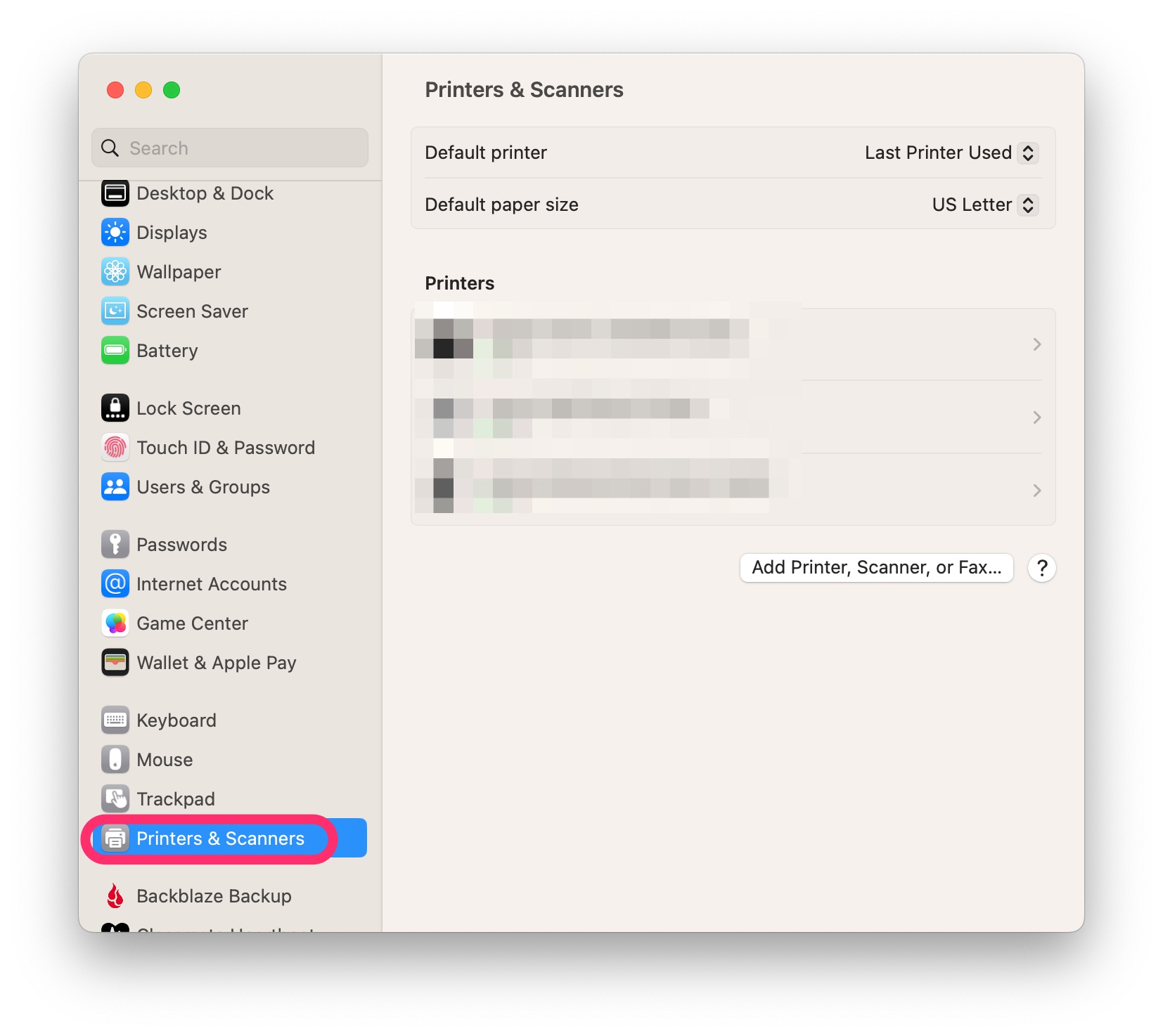
Scroll down and select Printers & Scanners
-
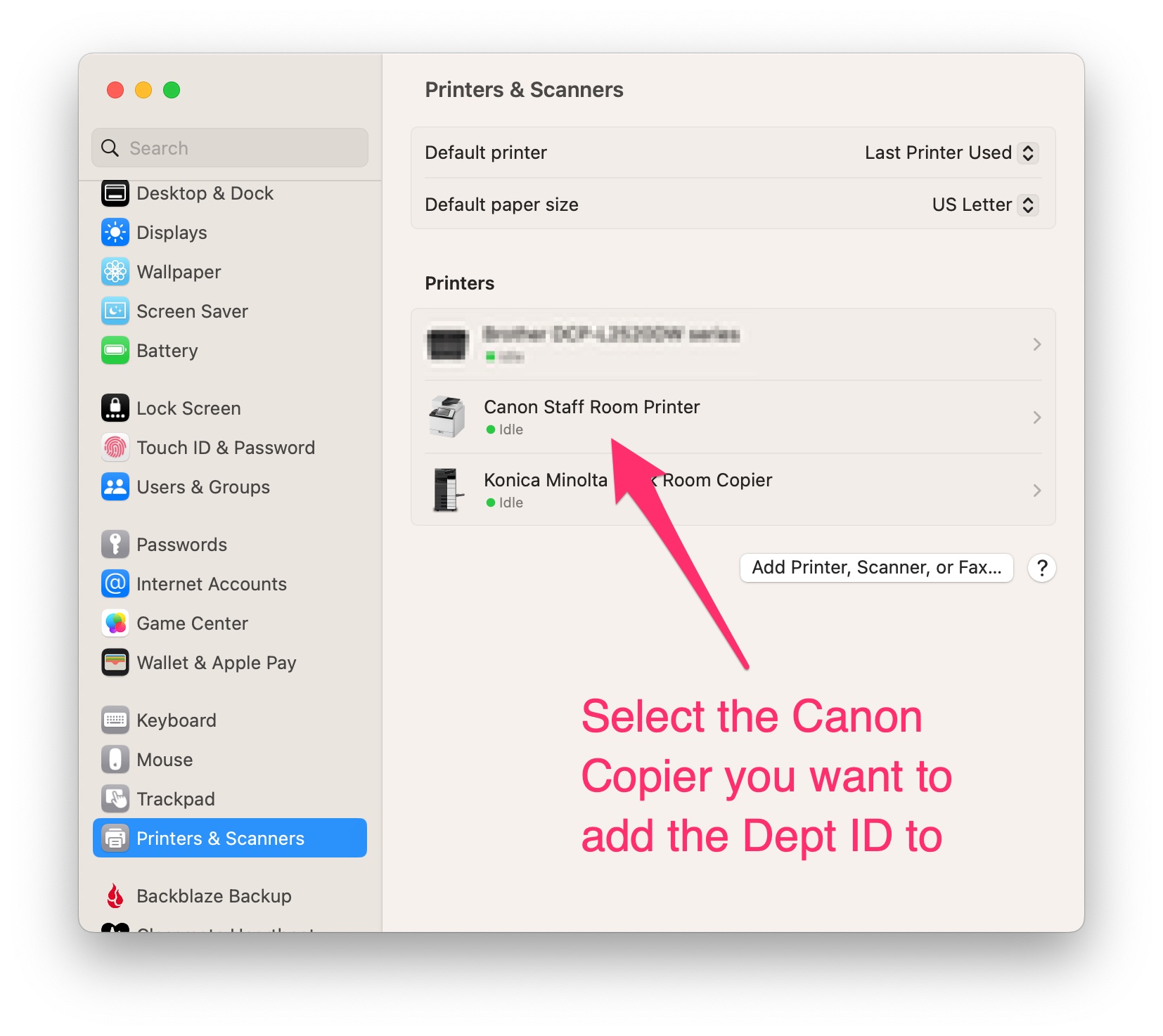
On the right, click on your Canon copier
-
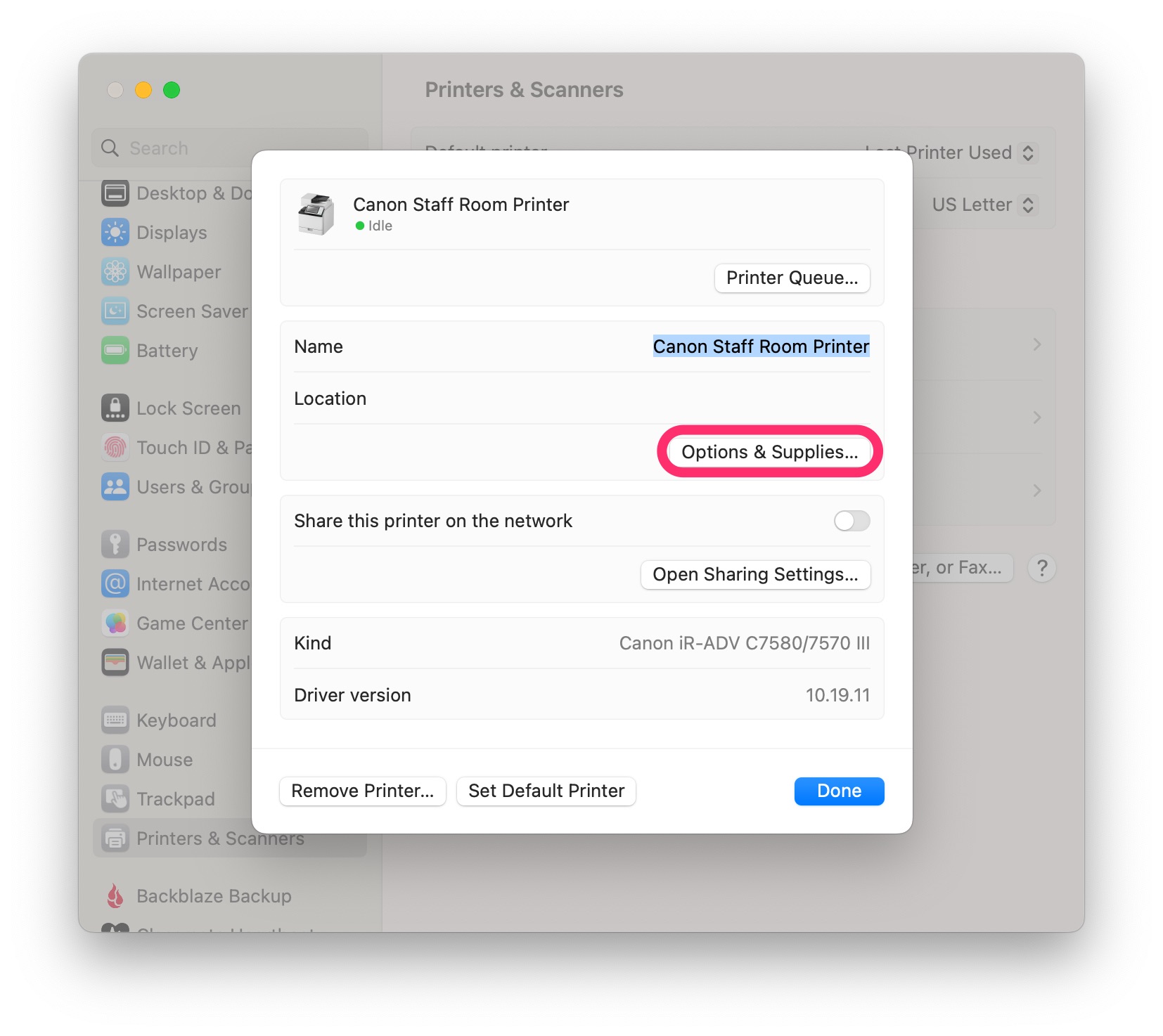
Click Options & Supplies...
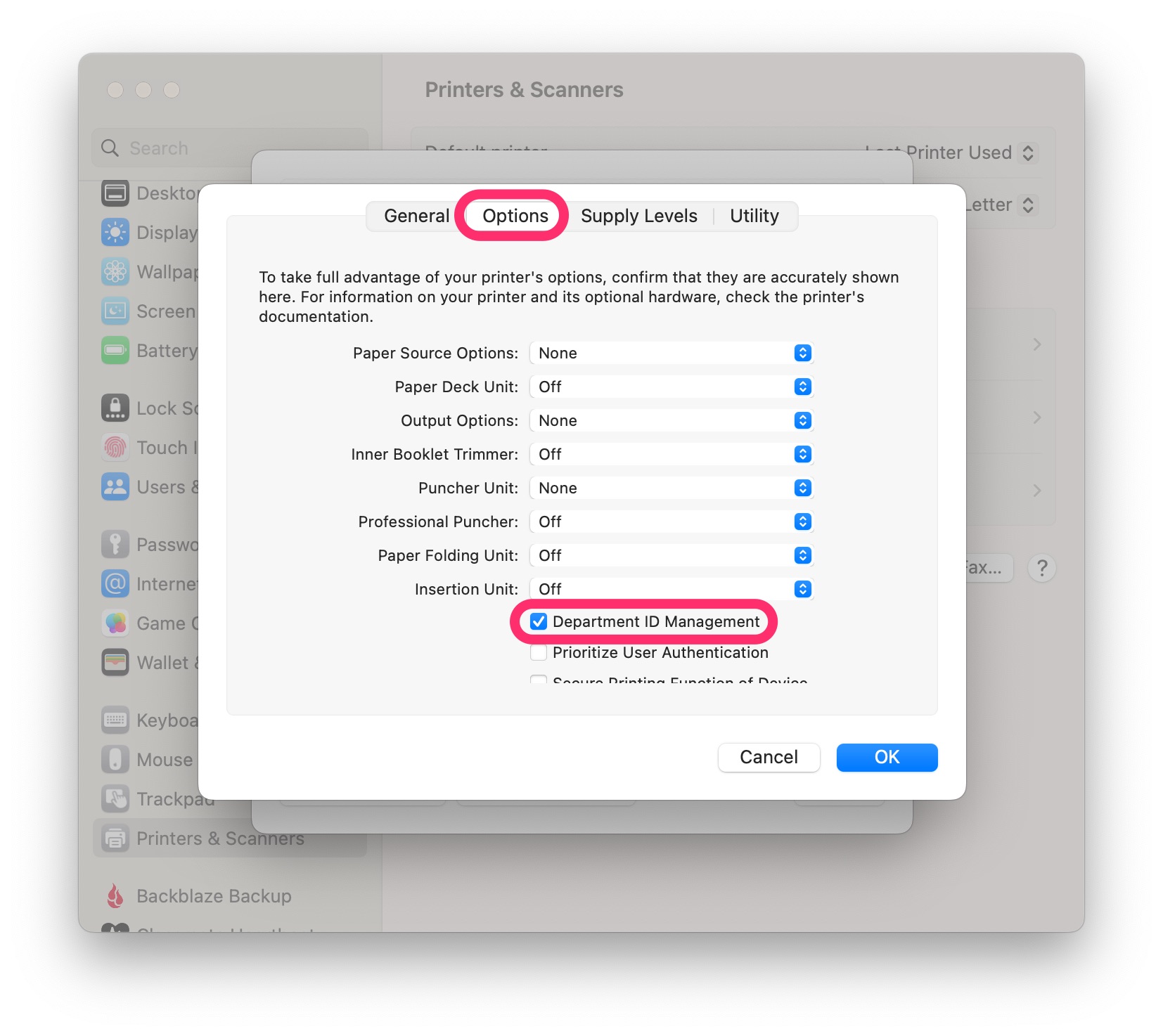
- Along the top, click on the Options tab
-
Enable (check) Department ID Management
-
-
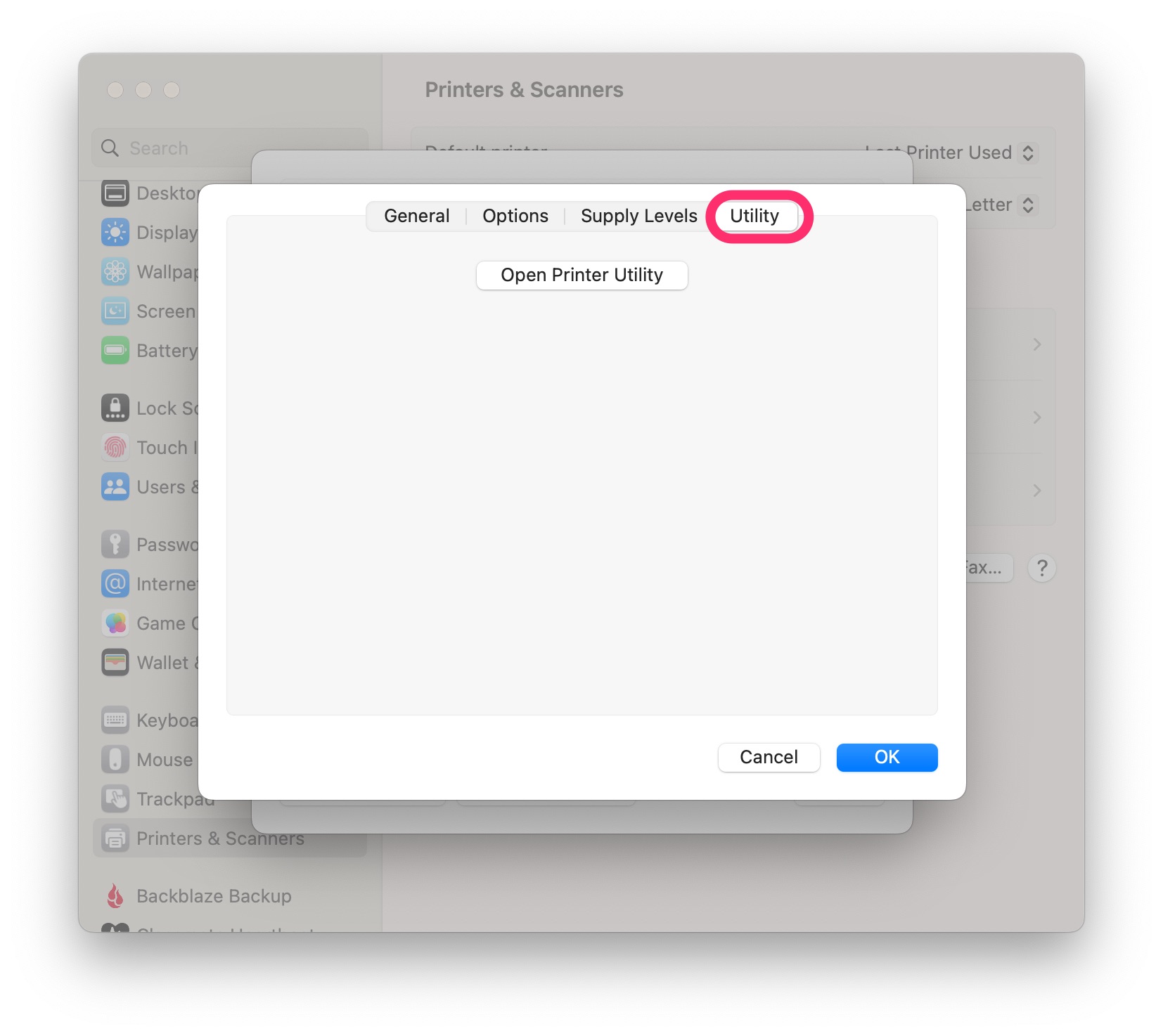
Along the top, click on the Utility tab
-
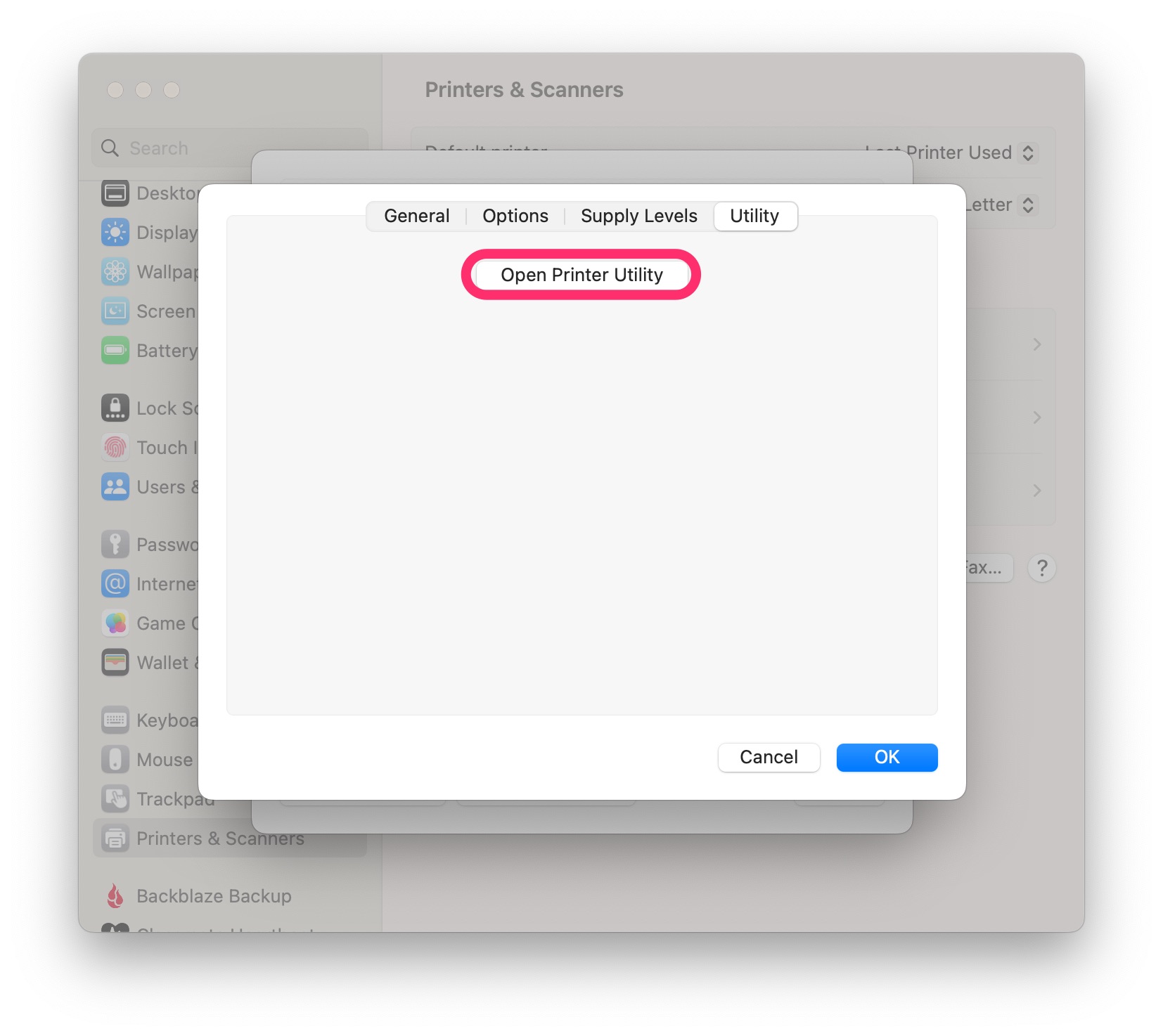
Click Open Printer Utility
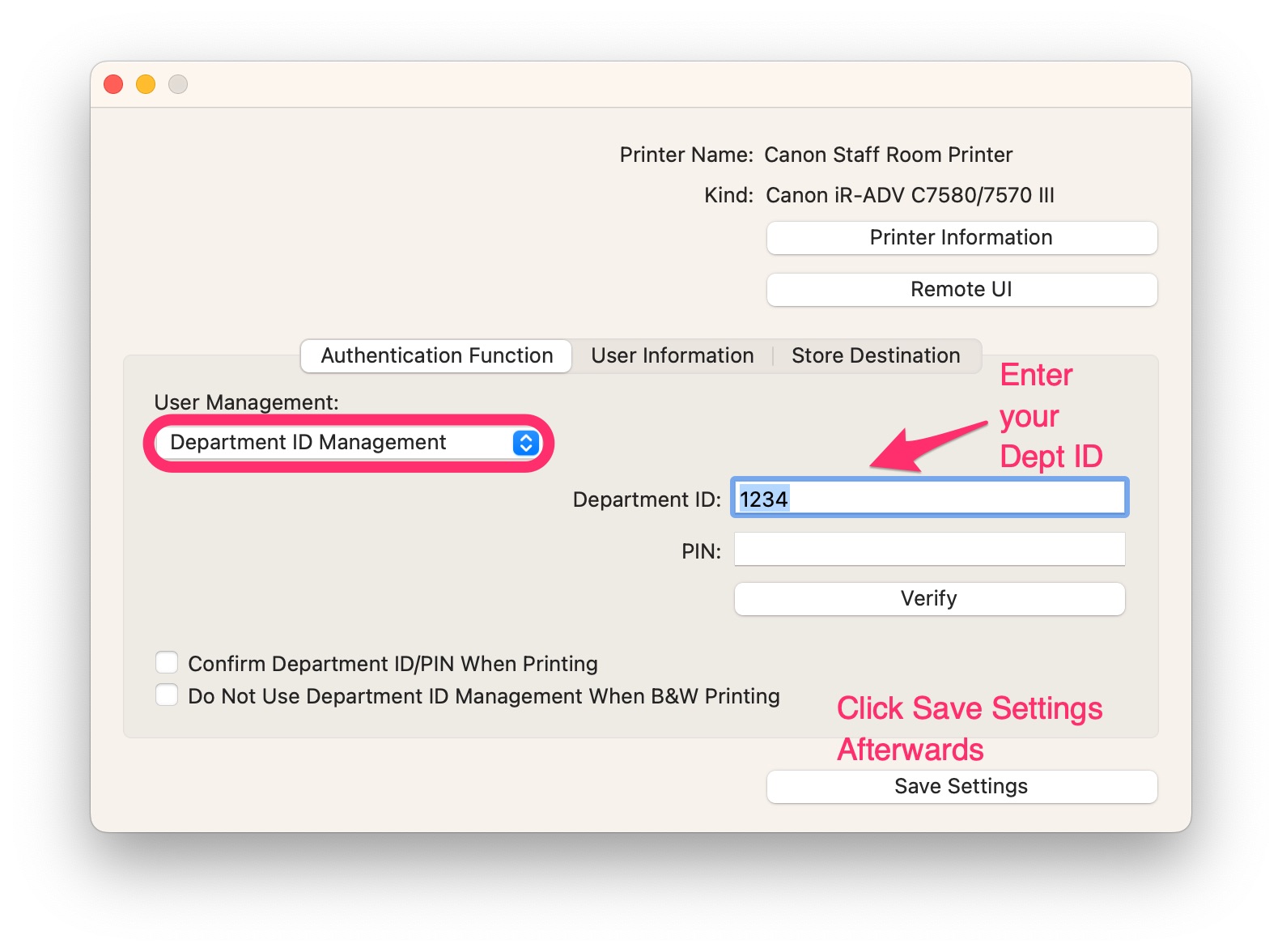
- Under User Management, select Department ID Management
- Enter your Department ID
-
Click Save Settings
- Close the window
- Click OK