How to Add a Shortcut to Your Chromebook's Dock
Bookmarks are a convenient way to access your most-visited websites, but if you're visiting the same page numerous times per day, you can easily add a site to your Chromebook's dock (also known as its 'Shelf') for one-click access. Here's how:
- Open Chrome and navigate to the page that you'd like to add to your dock.
-
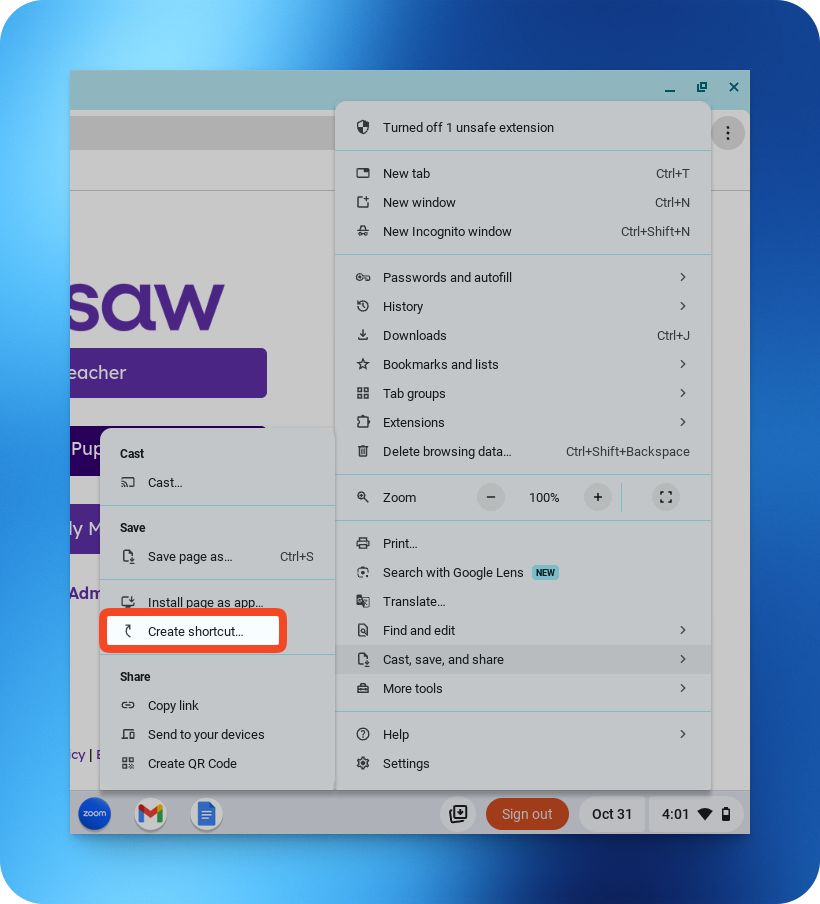
Click the More button (the three vertical dots in the upper right of your Chrome window) and click Cast, save, and share > Create shortcut.
-
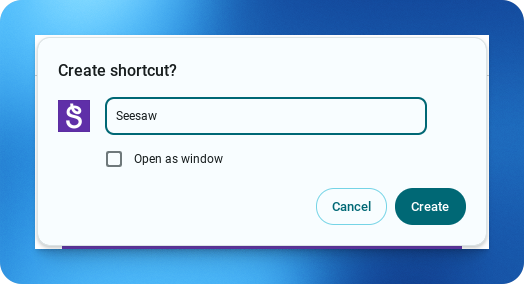
In the dialog box that appears, give your new shortcut a name and click Create.
-
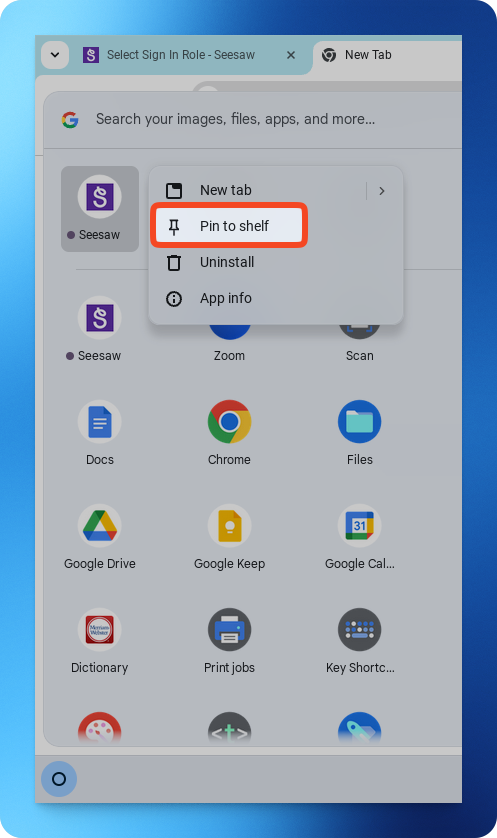
Click on the icon in the very bottom-left of your Chromebook's Dock to open its App Drawer to find your new shortcut. To add it to your Dock, right-click on the icon and choose 'Pin to shelf'. If you ever forget what an icon is for, simply hover your cursor over it for a reminder.
That's it! Easy, huh?