How to Connect to Wi-Fi on a Shared iPad
Shared student iPads will automatically connect to your school's student Wi-Fi network when located at your school.
In the instance that a shared iPad is leaving the school for any purpose, students and parents should know how to connect a shared iPad to a home (or other) Wi-Fi network, as a student may not be able to log into a shared iPad until the device is connected to Wi-Fi.
Luckily, connecting to a new Wi-Fi network from a shared iPad takes just a few steps, even from the iPad's login screen:
- Press the Sleep/Wake or Home Button to wake the iPad from sleep.
-
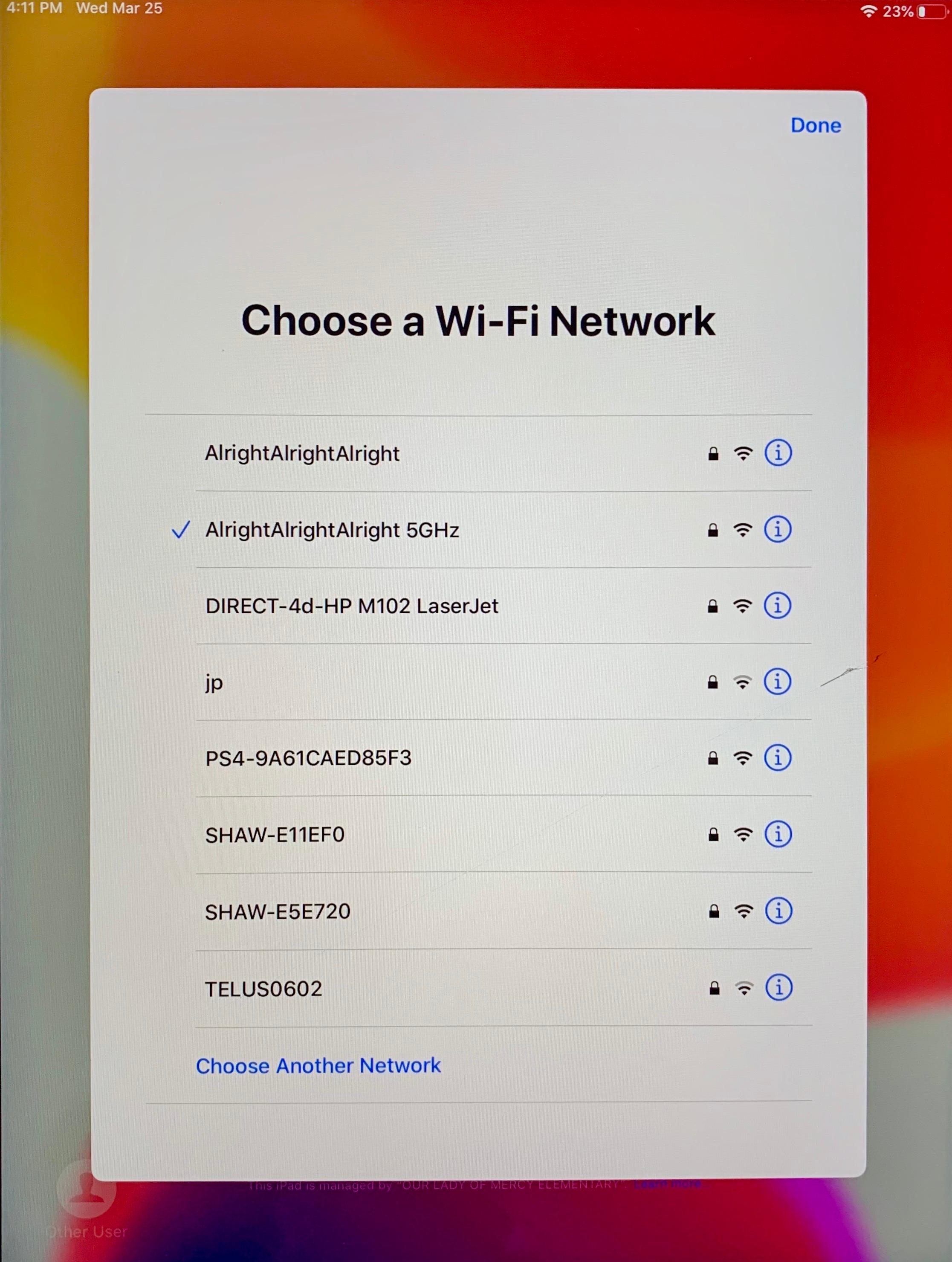
If the iPad has a Home Button, double-click it to show the 'Choose a Wi-Fi Network' menu. If the iPad doesn't have a Home Button, quickly double-click the Sleep/Wake button instead. Then, choose your desired Wi-Fi network from the list.
-
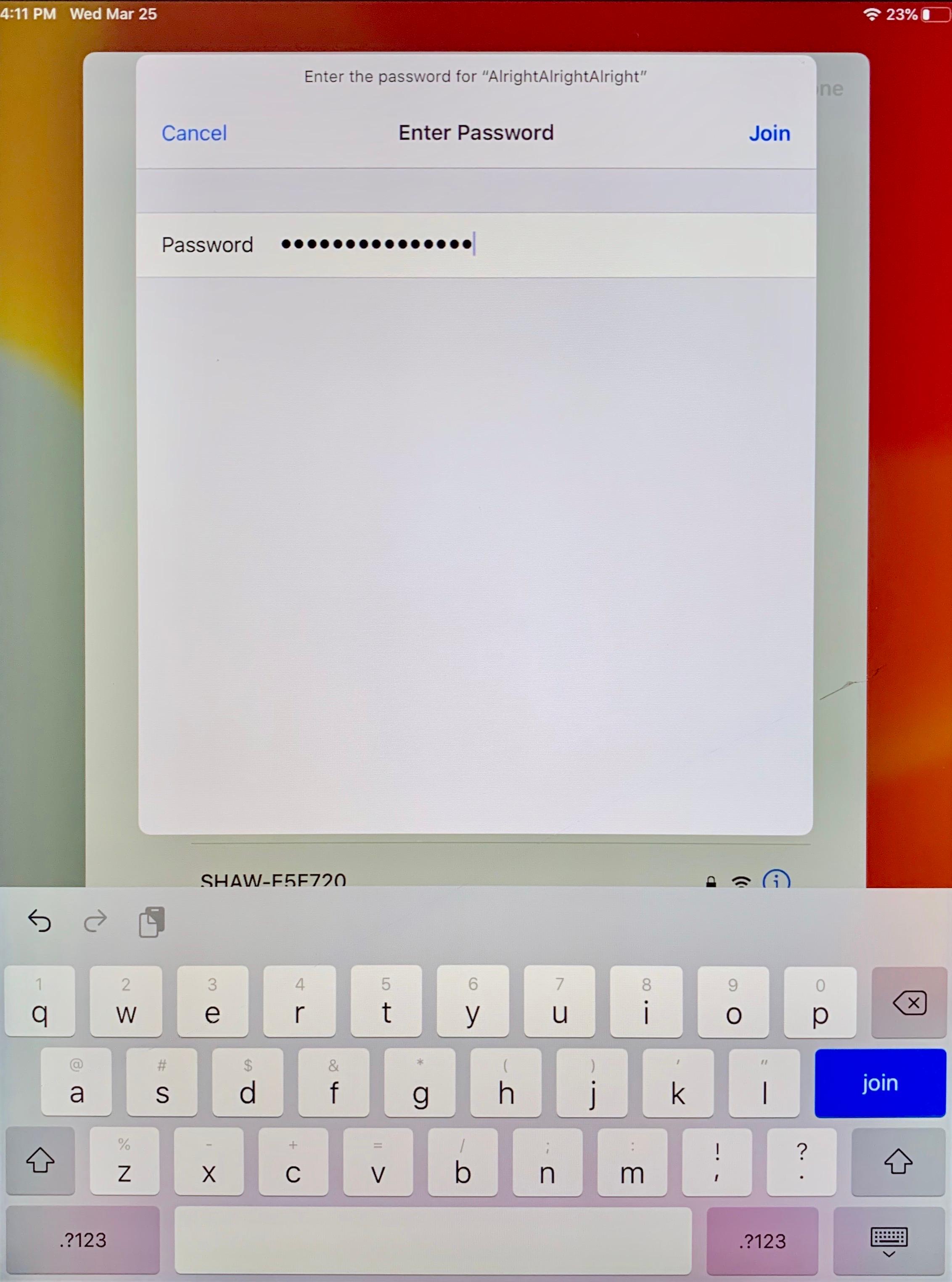
Input your Wi-Fi network's password and tap Join.
- Once connected, a student should be able to tap on their grade and log in without issue!
Quick Tip
If you accidentally triple-click on the Home Button instead of double-click in step two, you may enable an accessibility feature called Voiceover. You can triple-click the Home Button a second time to disable this again.