How students can sign into iCloud on 1:1 iPads
iPads rarely physically break, and software updates rarely fail, but in those rare occasions when they do it can be devastating and disheartening to lose photos, notes, and any other information that may not be saved to a student's Google account.
Thankfully, Apple provides educational users (so students and teachers) with 200GB of iCloud storage at no charge — all that you or your students need to do to take advantage of it, is to sign in!
Here's how students can sign into iCloud on 1:1 devices:
- Open Settings
-
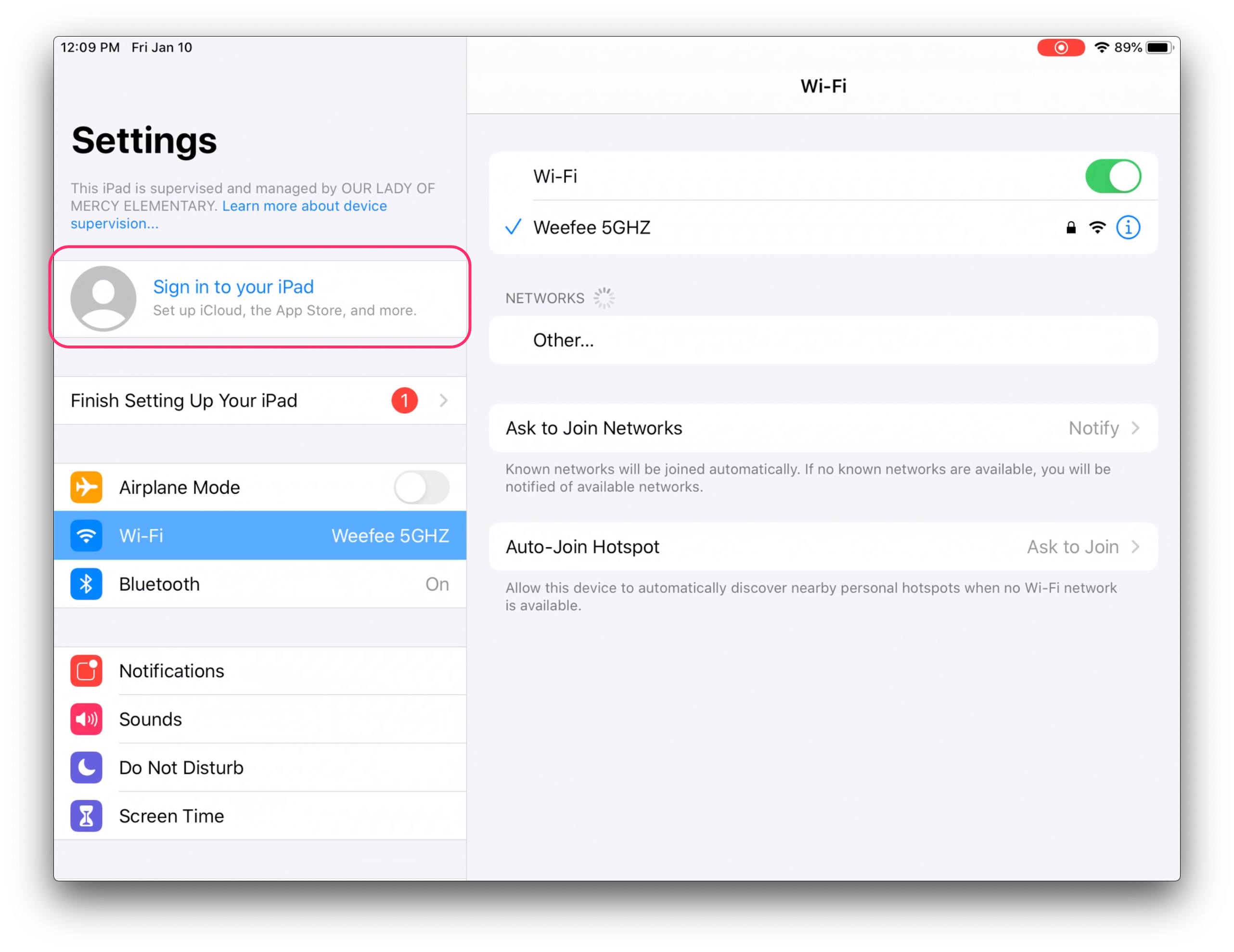
At the top-left, tap Sign in to your iPad
-
In the box that appears, type in your school-managed Apple ID, and then tap Next. For example, if your school email / Google account is dominic.toretto@driftschool.ca, your Apple ID would be dominic.toretto@appleid.driftschool.ca
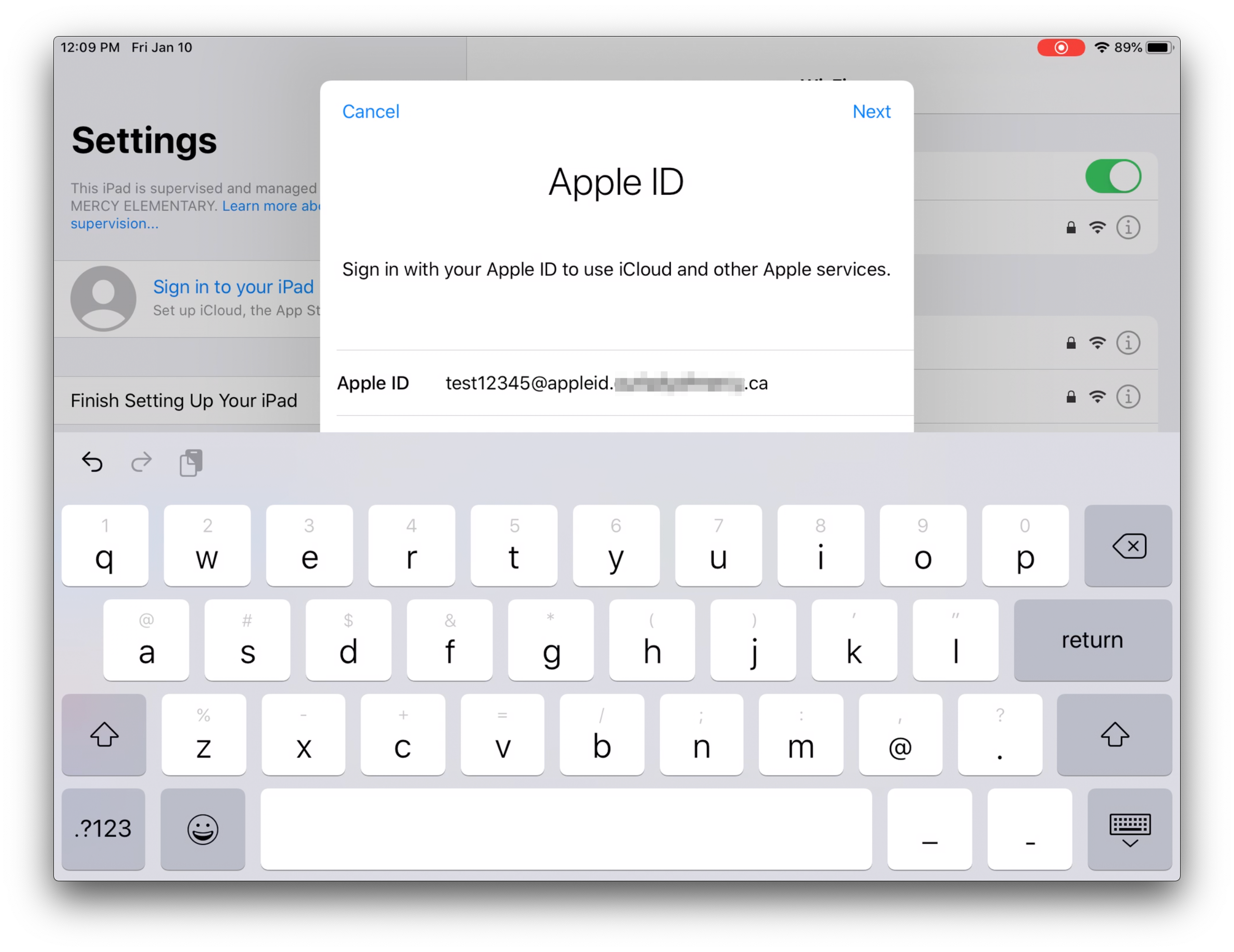
- On the next screen, you'll be asked to type in your temporary password. For students, we've set this to 4321. Once you enter this, you'll be asked to choose a new 4-digit password.
-
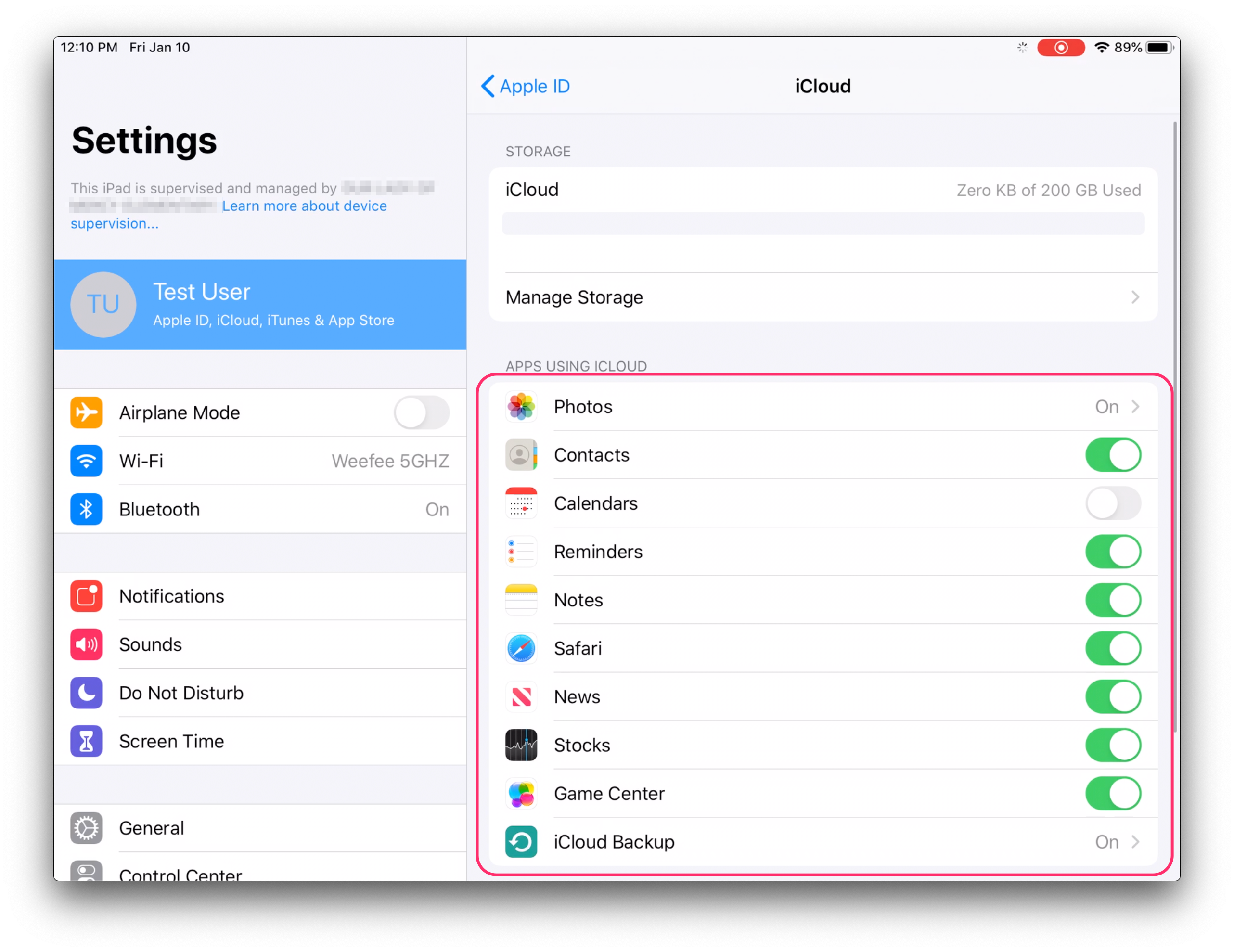
Your iPad will take a moment to sign into iCloud. Once you're signed in, you can tap on iCloud to choose what content to sync.
A few things to note:
- Once a student is signed into iCloud, as long as iCloud Backup is enabled, their iPad will back up when connected to power, connected to Wi-Fi, and has its screen locked (the device is asleep). We'll restore these backups if an iPad needs to be replaced or restored over the school year, but not as devices are refreshed over the summer.
- With things like Photos and Notes enabled (separate from backup, see above screenshot), this content will sync to iCloud right away (as long as the device is connected to the internet). If a student is assigned a new or different iPad the following year, they can sign into their iCloud account on that new iPad to have this content automatically downloaded again.
- For school-managed Apple ID's, not all features of iCloud are available. For example, students won't be able to use iCloud email, FaceTime, or iMessage when signed into these accounts.