Control your Apple TV using an iPad or iPhone
Add the Apple TV Remote to Control Center
-
On your iPad or iPhone, swipe down from the top-right corner of the screen to open Control Center
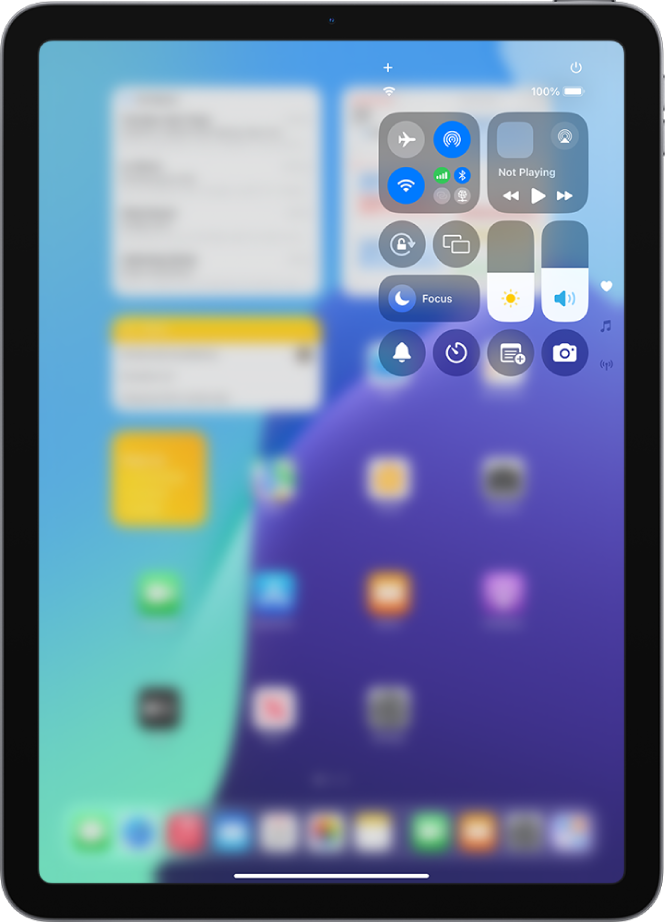
Image via Apple - Along the top, tap the plus (+) button
- Along the bottom, tap Add a Control
-
Use the search to find Remote
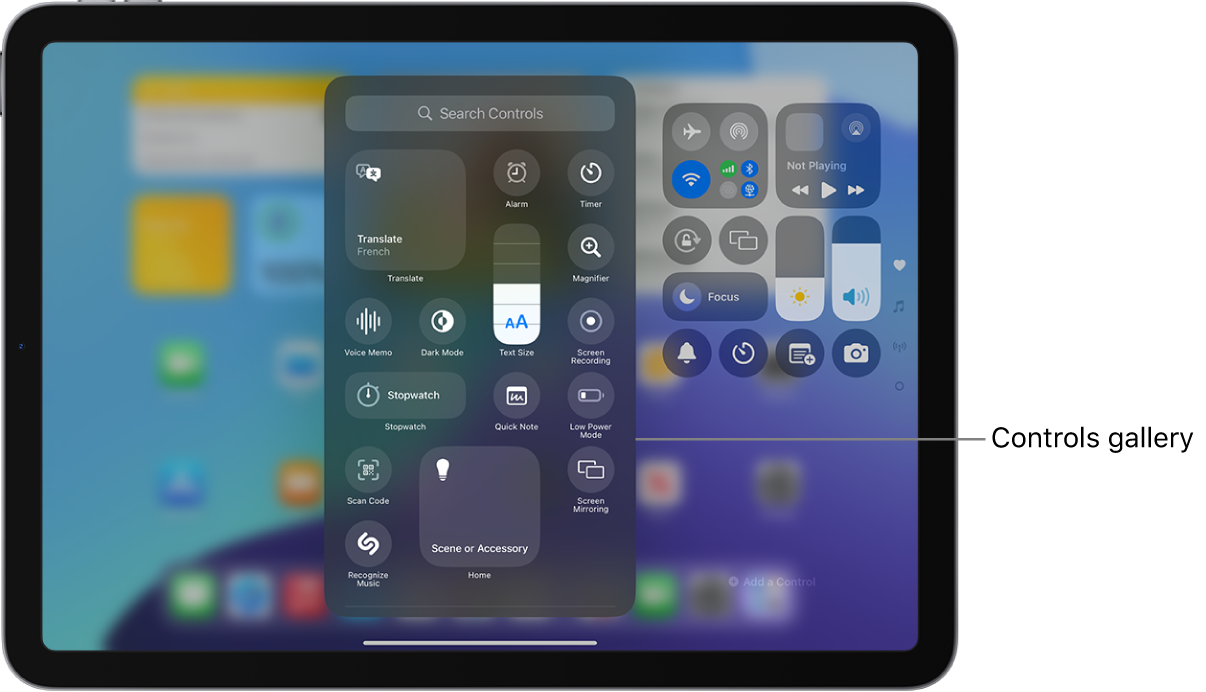
Image via Apple - Tap Remote to add it to Control Center
Set up the Apple TV Remote in Control Center
- Swipe down from the top-right corner of the screen to open Control Center
- Tap the Remote
- Tap your Apple TV from the list
- Enter the four-digit passcode that appears on your projector's screen
The setup can be completed on any iPad or iPhone — we recommend using your school-issued iPad. Once you've completed the setup, you can tap on the Remote icon within Control Center whenever you need to control your Apple TV.